> ## Documentation Index
> Fetch the complete documentation index at: https://docs.trymaitai.com/llms.txt
> Use this file to discover all available pages before exploring further.
# Authentication
> Authenticate using a Maitai API key (and optionally provider keys).
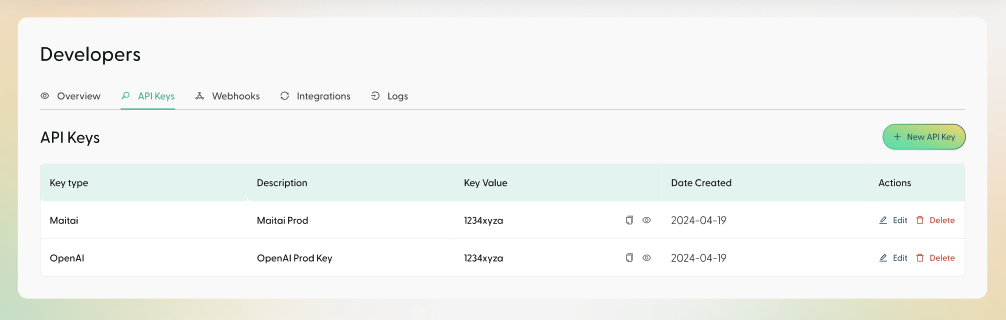
You can create Maitai API keys in the Portal under `Settings` > `API Keys`. For the REST API, pass the key in the `X-Maitai-Api-Key` header.
 ## Maitai API key (required)
Set `MAITAI_API_KEY`:
```bash theme={null}
export MAITAI_API_KEY=""
```
Or pass it directly when constructing the client:
```python Python theme={null}
import maitai
client = maitai.Maitai(
maitai_api_key="",
)
```
```javascript Node theme={null}
import Maitai from "maitai";
const maitai = new Maitai({
maitaiApiKey: "",
});
```
## Provider keys (optional)
Maitai can run requests across multiple providers. You can supply provider keys in two ways.
### Option A: Environment variables
```bash theme={null}
export OPENAI_API_KEY=""
export GROQ_API_KEY=""
export ANTHROPIC_API_KEY=""
export CEREBRAS_API_KEY=""
export SAMBANOVA_API_KEY=""
export GEMINI_API_KEY=""
```
The Python SDK also supports DeepSeek (`DEEPSEEK_API_KEY` / `deepseek_api_key`).
### Option B: Pass provider keys into the SDK constructor
```python Python theme={null}
import maitai
client = maitai.Maitai(
maitai_api_key="",
openai_api_key="",
groq_api_key="",
anthropic_api_key="",
cerebras_api_key="",
sambanova_api_key="",
gemini_api_key="",
deepseek_api_key="",
)
```
```javascript Node theme={null}
import Maitai from "maitai";
const maitai = new Maitai({
maitaiApiKey: "",
openaiApiKey: "",
groqApiKey: "",
anthropicApiKey: "",
cerebrasApiKey: "",
sambanovaApiKey: "",
geminiApiKey: "",
});
```
If your company has provider keys configured in the Portal, the SDK can automatically use them after it initializes (so you don’t have to set provider env vars in every environment).
## Managing provider keys in the Portal
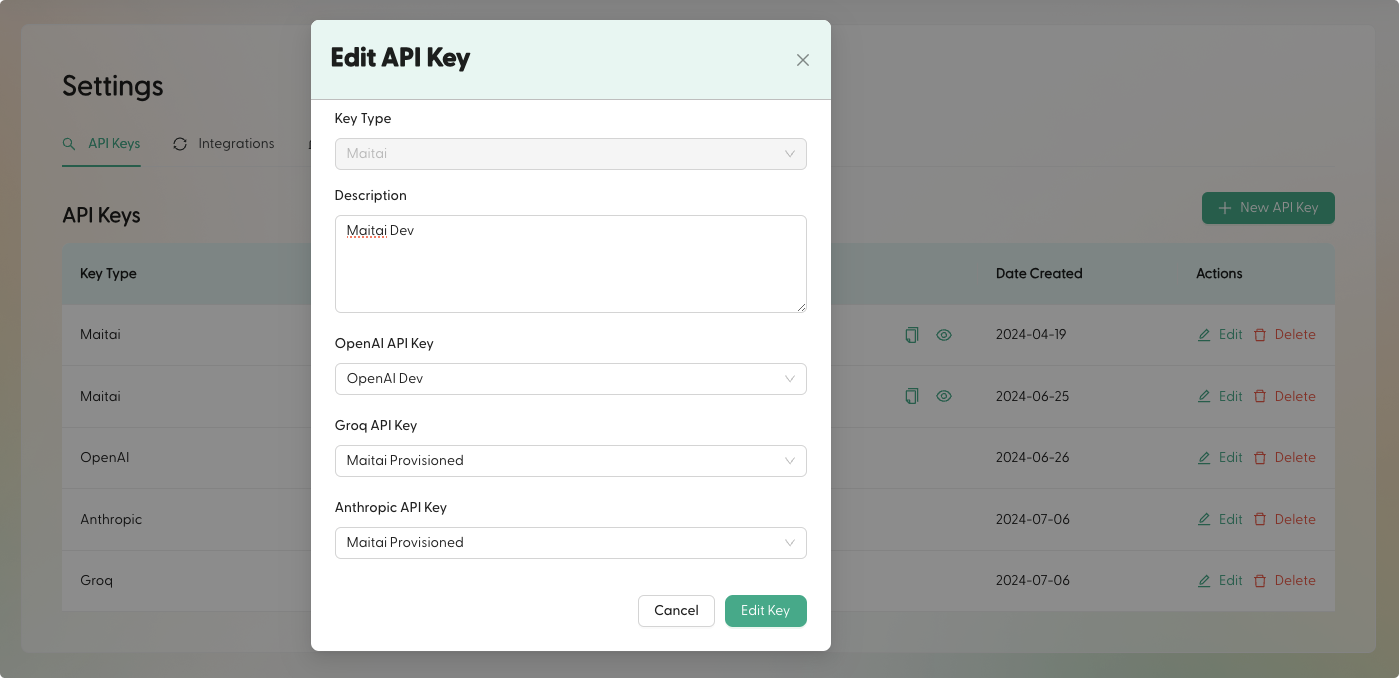
To better organize credentials across environments, you can store provider keys in the Portal and associate them with a Maitai key. This lets you keep `MAITAI_API_KEY` as the only required secret for most integrations.
## Maitai API key (required)
Set `MAITAI_API_KEY`:
```bash theme={null}
export MAITAI_API_KEY=""
```
Or pass it directly when constructing the client:
```python Python theme={null}
import maitai
client = maitai.Maitai(
maitai_api_key="",
)
```
```javascript Node theme={null}
import Maitai from "maitai";
const maitai = new Maitai({
maitaiApiKey: "",
});
```
## Provider keys (optional)
Maitai can run requests across multiple providers. You can supply provider keys in two ways.
### Option A: Environment variables
```bash theme={null}
export OPENAI_API_KEY=""
export GROQ_API_KEY=""
export ANTHROPIC_API_KEY=""
export CEREBRAS_API_KEY=""
export SAMBANOVA_API_KEY=""
export GEMINI_API_KEY=""
```
The Python SDK also supports DeepSeek (`DEEPSEEK_API_KEY` / `deepseek_api_key`).
### Option B: Pass provider keys into the SDK constructor
```python Python theme={null}
import maitai
client = maitai.Maitai(
maitai_api_key="",
openai_api_key="",
groq_api_key="",
anthropic_api_key="",
cerebras_api_key="",
sambanova_api_key="",
gemini_api_key="",
deepseek_api_key="",
)
```
```javascript Node theme={null}
import Maitai from "maitai";
const maitai = new Maitai({
maitaiApiKey: "",
openaiApiKey: "",
groqApiKey: "",
anthropicApiKey: "",
cerebrasApiKey: "",
sambanovaApiKey: "",
geminiApiKey: "",
});
```
If your company has provider keys configured in the Portal, the SDK can automatically use them after it initializes (so you don’t have to set provider env vars in every environment).
## Managing provider keys in the Portal
To better organize credentials across environments, you can store provider keys in the Portal and associate them with a Maitai key. This lets you keep `MAITAI_API_KEY` as the only required secret for most integrations.
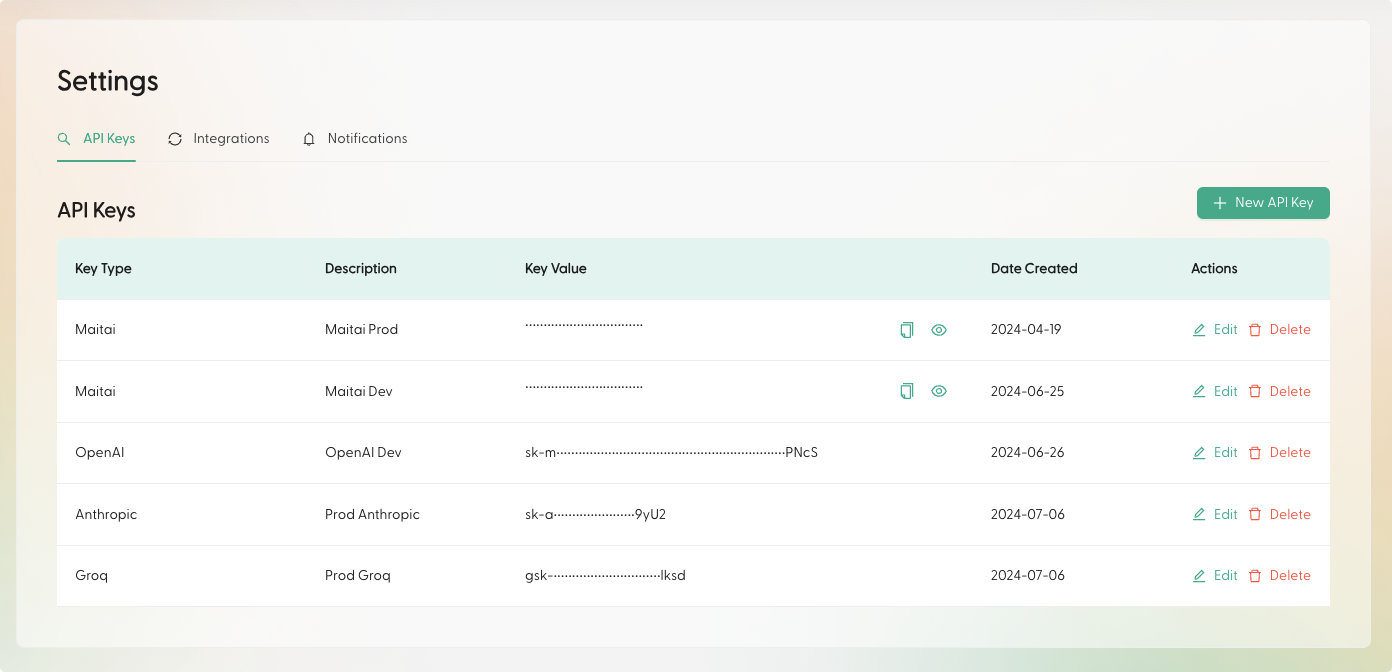 For best practice, create a separate Maitai key per environment, then attach the provider keys you want that environment to use.