

Creating a Test Run
- Navigate to your Test Set Overview page
- Click New Test Run in the upper right corner of the Test Runs table
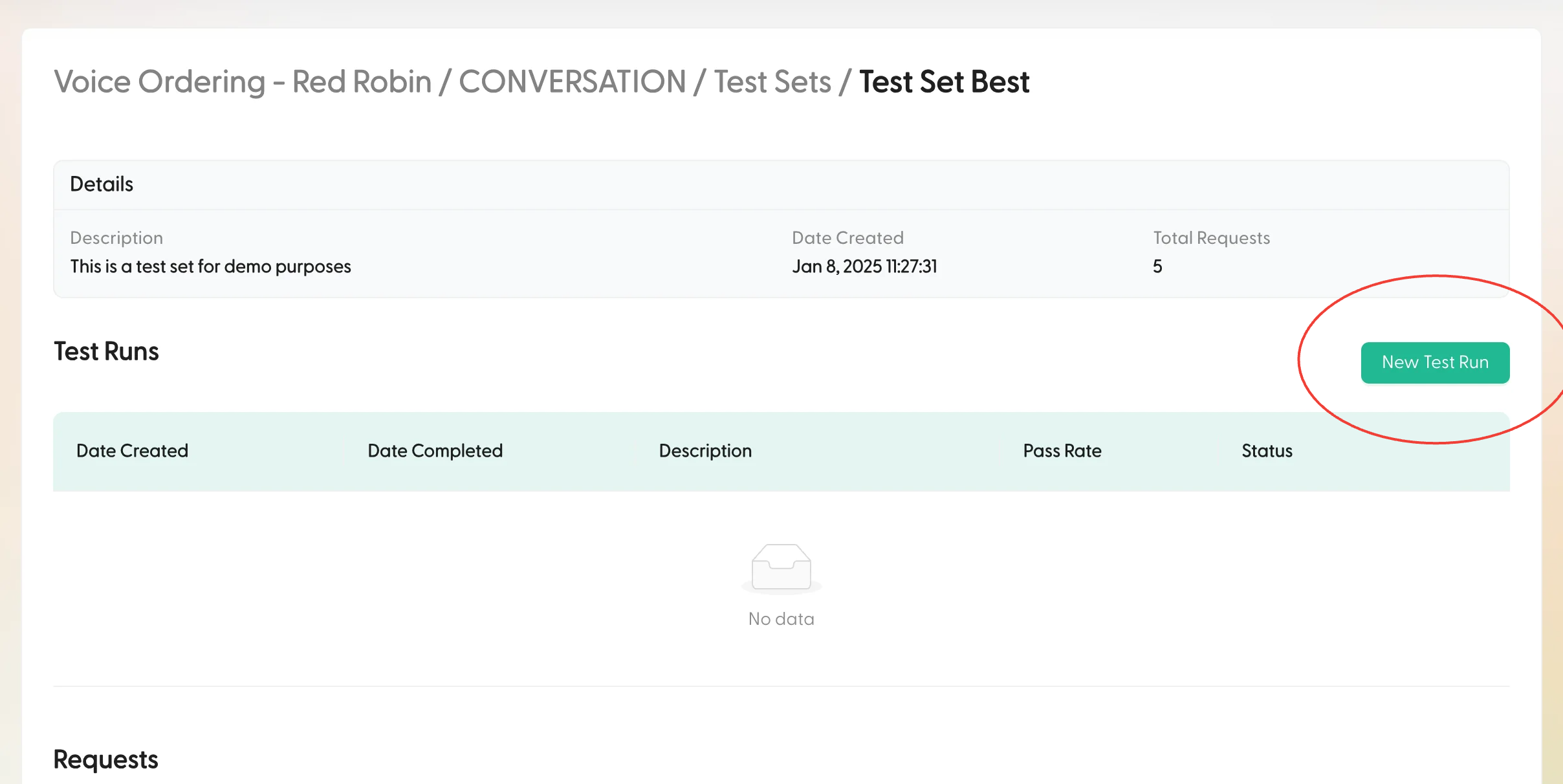
- Configure your Test Run:
- Choose a consumer: Request (a model + generation params), Workflow, or Agent.
- Add a descriptive name to identify this run later.
- Pick the evaluation criteria that will score the run.
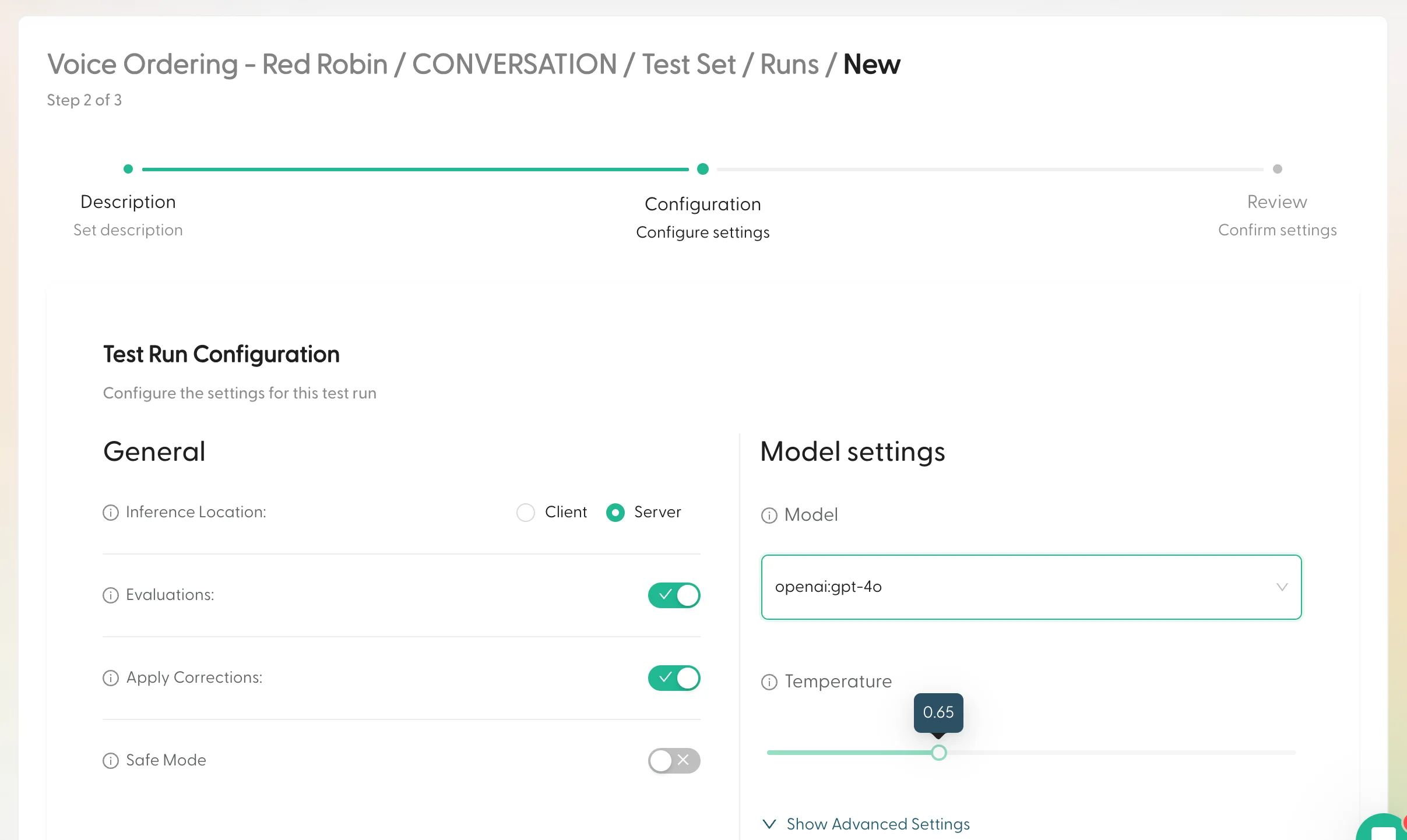
- Review your settings and click Create Test Run
- You’ll be redirected back to the Test Set Overview where your new Test Run will appear at the top of the table
Test Runs may take a few minutes to complete. While the status is
PENDING, you won’t be able to access the Test Run details.Understanding Test Run Results
Once your Test Run completes, you can analyze the results in detail:Overview
Each Test Run shows headline metrics, for model and workflow runs a match rate (share of items whose output matched the expected output), and for agent runs a pass rate across the run’s criteria.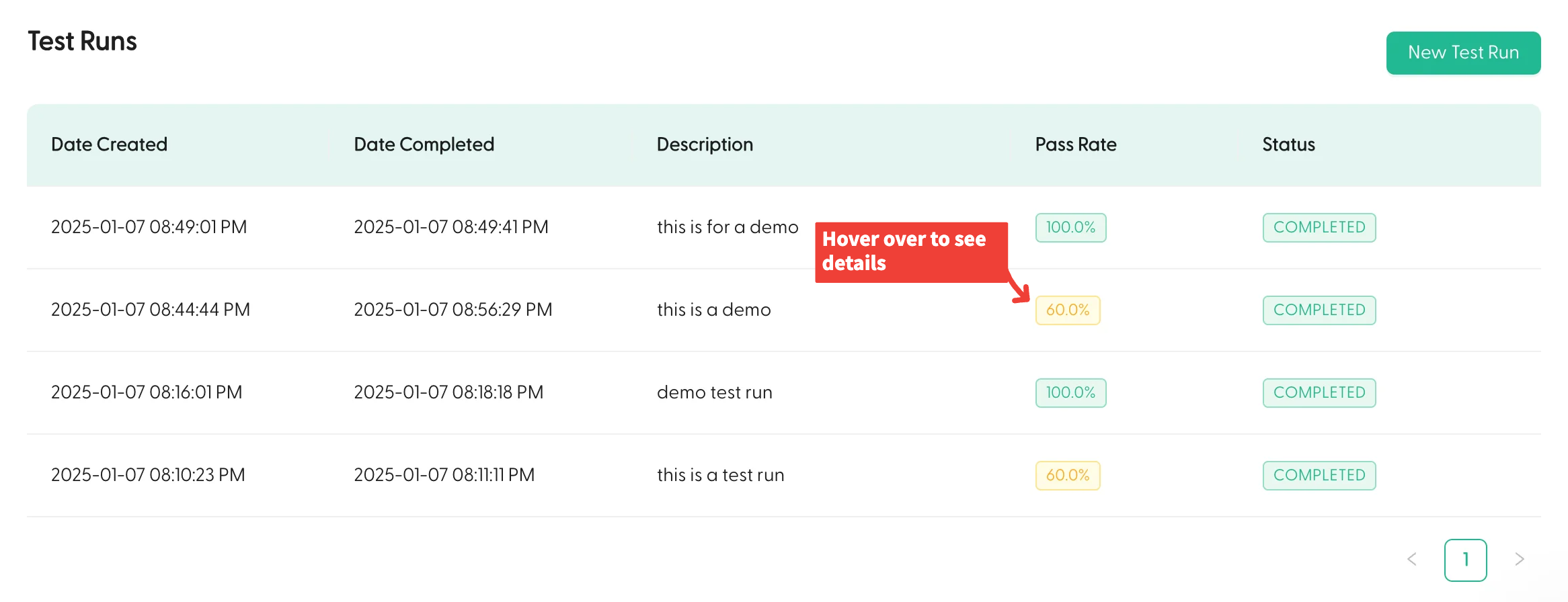
Detailed Analysis
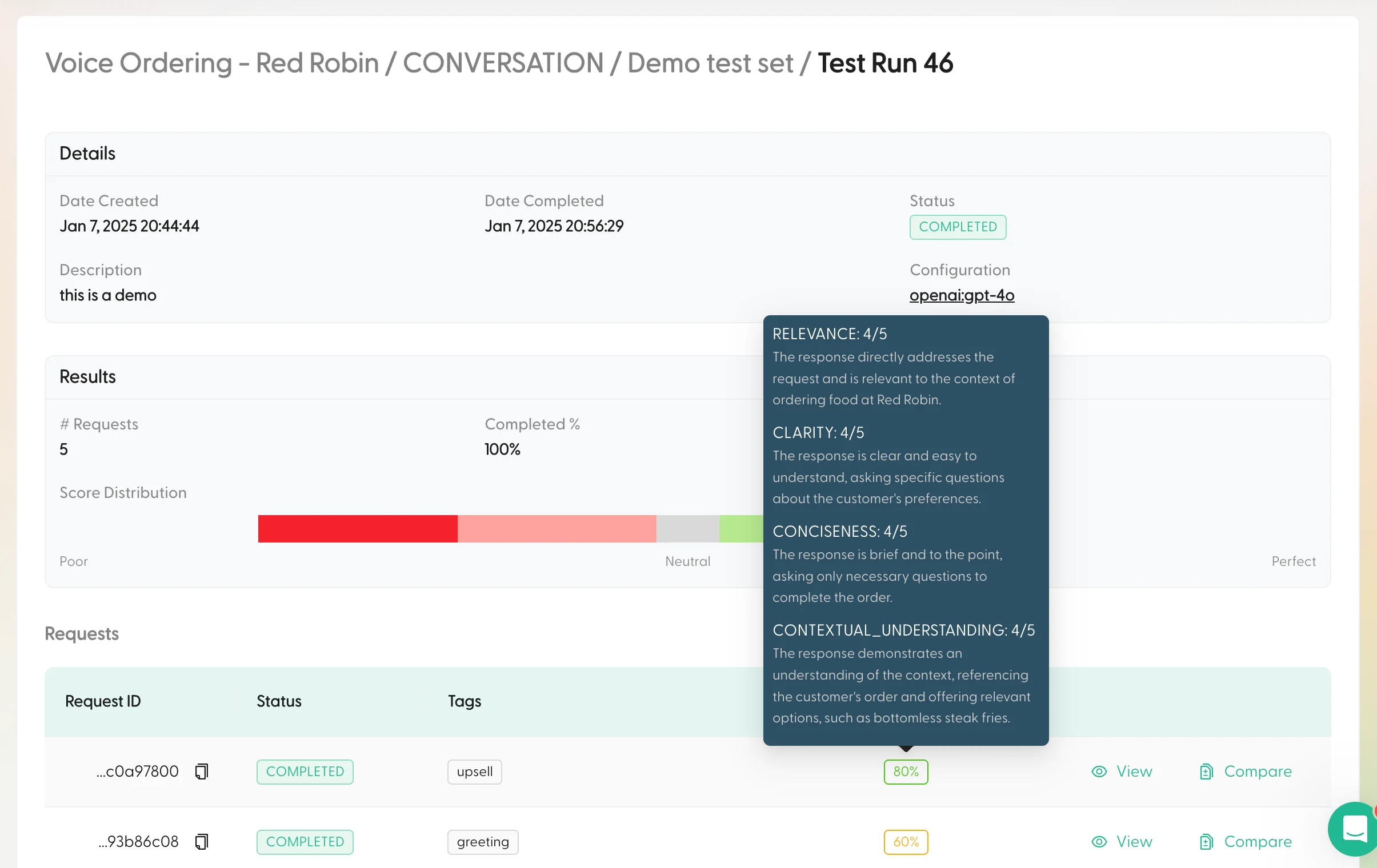
Click on any completed Test Run to see:-
Details Section
- Configuration used for the Test Run
- Description and execution timestamps
- Overall performance metrics
-
Results Section
- Macro-level metrics across all items (match/pass rate, completed %, error %)
- Per-criterion breakdowns, pass/fail, numeric score distributions, or tag distributions
- Hover a segment for detailed breakdowns
- Requests Table
- Individual scores for each request
- Hover over scores to see evaluation criteria
- Compare original vs Test Run responses side-by-side
Comparing runs (baseline vs candidate)
On a Test Set, you can compare runs side-by-side, including runs against different consumers. This is the fastest way to answer:- “Did this change improve the overall match rate?”
- “Which specific items got better or worse?”
Want to learn more about building Test Sets? Start with Test Set Creation.