

input + expected output items so you can
repeatedly benchmark changes (configuration, prompts, models, workflows, agents) in a consistent
way. A test set is type-less: one set can hold items from production requests, workflow runs,
agent tasks, or manual entries.
If you want the full reference docs for Test Sets, start here:
Where to find Test Sets
In the Portal, go toTest > Test Sets, the list shows every test set in your company.
Create a Test Set (wizard)
- Click New Test Set.
- Pick the Application the set belongs to, add a name (required) and optional description.
- Add items: from any mix of sources (Request, Workflow Run, Agent Task, Manual), or upload a
JSONL file. You can also skip this and add items later.
- Use View to inspect an item before adding.
- Review and optionally mark the set as Golden.
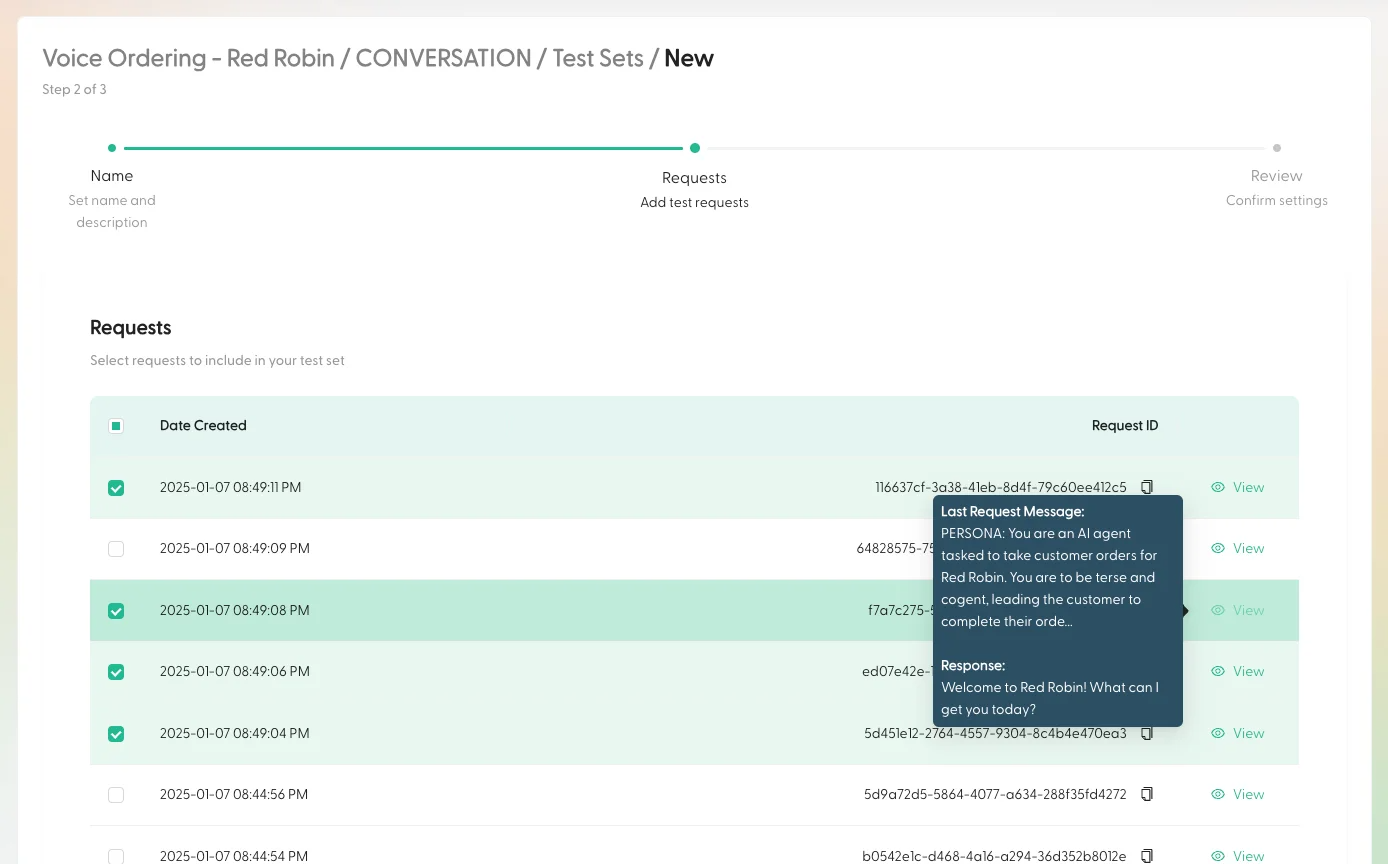
Don’t worry about perfect coverage on day one, you can add more items as you discover new edge cases.
Add a request to a Test Set while you’re debugging
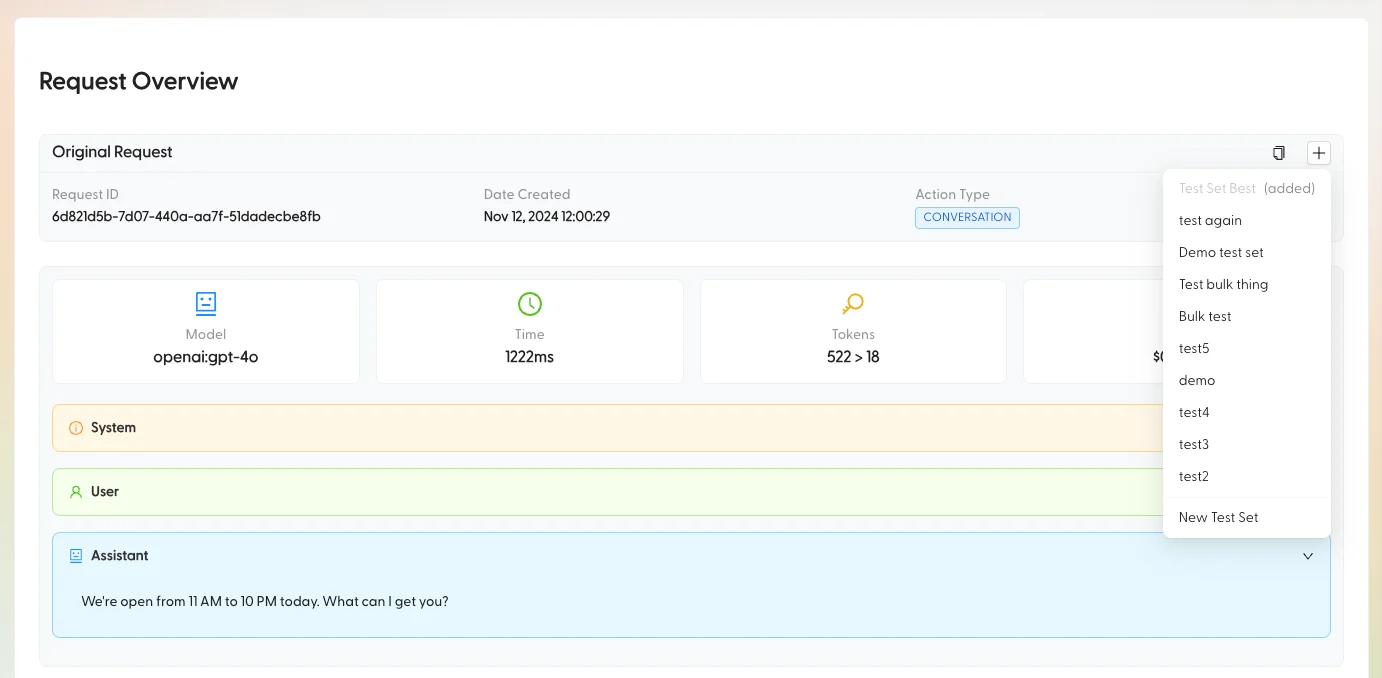
The fastest way to build a Test Set is to “promote” interesting requests you’ve already observed.From a Request page
- Open a request (for example from an Intent Group’s Requests tab or from
Test > Evaluations). - Click Add to Test Set.
- Pick an existing Test Set (or create a new one inline).
- Add tags and submit.
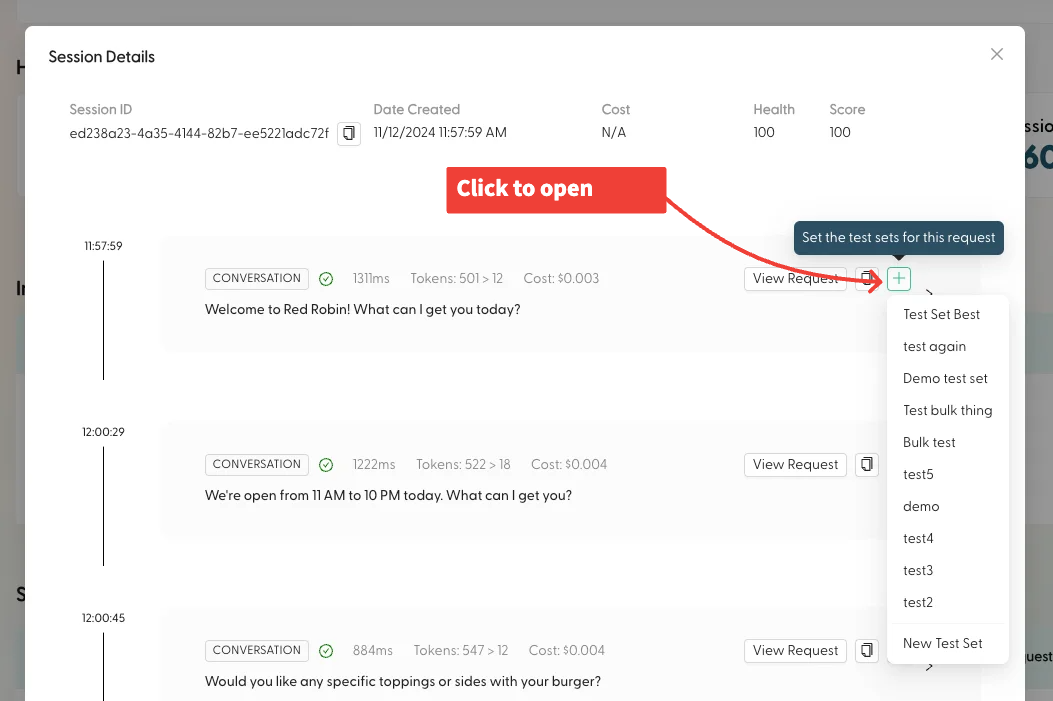
From a Session view
- Find the request row you care about.
- Click the
+action to open the Add to Test Set menu. - Pick a Test Set, add tags, submit.
Correct the “expected” response (when the original response is wrong)
If the model response in production is wrong (but you know what it should have said), update the Test Set’s expected response by editing the request’s final assistant message. You can do this either:- Before adding (from the Eligible Requests table during Test Set creation), or
- After adding (from the Test Set’s request tables, using the request edit action)