

reasoning mode process every request through a pipeline of flow steps. The entire pipeline is exposed on the agent’s Configuration tab, there are no hidden system instructions. Each LLM-powered step is a card you can open, inspect, and customize: what you see in the pipeline is exactly what runs.
The pipeline
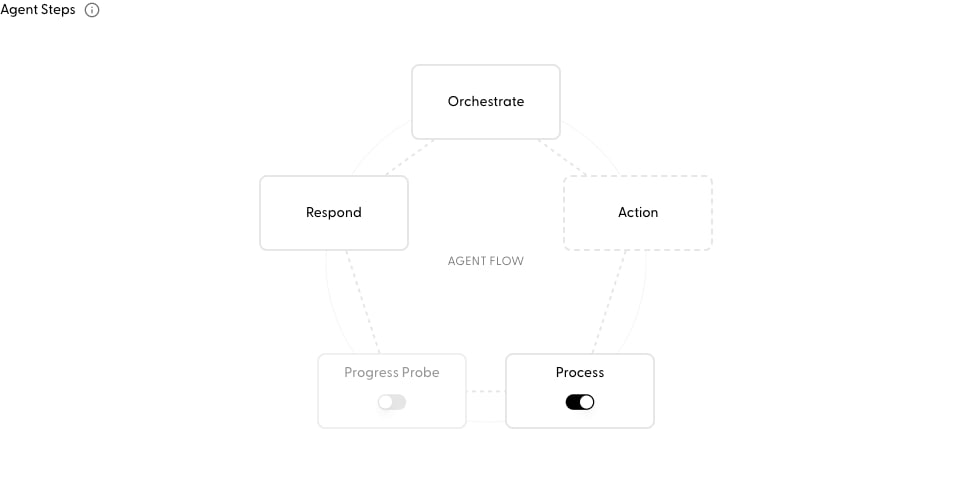
Configuring a step
Click any step in the pipeline to open its configuration: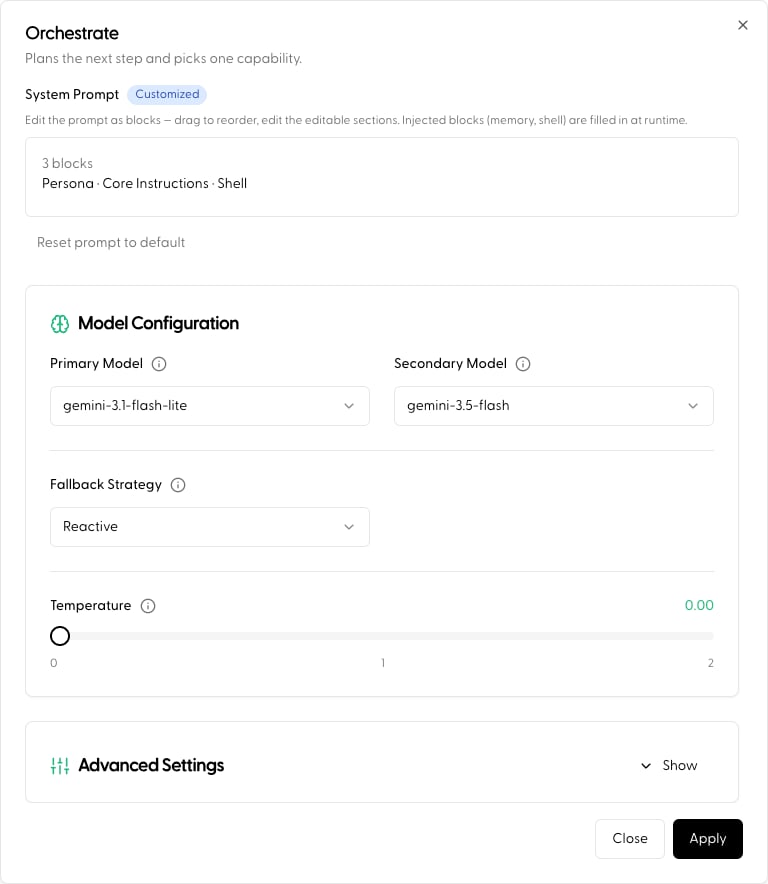
- System prompt: every step ships with Maitai’s default prompt template. Edit it to tailor the step to your agent; a badge on the step shows Default vs Customized, and you can reset back to the default at any time.
- Model & parameters: each step runs as its own intent, so each can use its own model and hyperparameters. A common pattern: a fast, cheap model for Orchestrate and Process, and a premium model for Respond.
- Prioritization logic, checklists before calling tools go in Orchestrate
- How to interpret and synthesize capability results goes in Process
- Tone, formatting, and response policy go in Respond
- Structured JSON answer shape (schema) goes in Respond, under Response Format
Flow steps run through your Application like any other intent, which means each step shows up in request monitoring and can be independently fine-tuned over time.
Toggling optional steps
Process and Progress Probe have switches directly on the pipeline. Turning Process off trades context quality for latency; turning Progress Probe on trades latency for tighter loop control.Per-request overrides (SDK)
You can toggle flow steps for a single request without touching the published agent, for example, skipping the Progress Probe on a latency-sensitive call:orchestration, processing, progress, and respond. Overrides are validated against the published version and only whitelisted toggles apply (see Agent Call) per-request overlays.
Next
- Define the fields your agent maintains: Agent State
- Full walkthrough: Build an Agent